How do you manage the publication of real estate listings on portals?

In this manual, you will learn how to publish offers on real estate portals.
In the ASARI CRM program for real estate offices, there are two options for managing the export of offers to portals. The first option is to edit the selected property and apply only to it, and the second option uses operations on the property basket. In this manual, you will learn the principles of each of them.
Before you go into the details, we remind you that if you change the status of an offer to:
withdrawn
sold
rented
blocked*
This offer will automatically be sent to the portals as an offer to be removed.
*Blocked offers have different reasons for blocking. Depending on the configuration, some reasons can be exported to portals.
Read more about the configuration of blocking reasons in the manual: Configuration of blocking reasons.
You can read more about changing the status of an offer in this manual: Changing the status of a property.
Option 1 - manage the export by editing the selected property
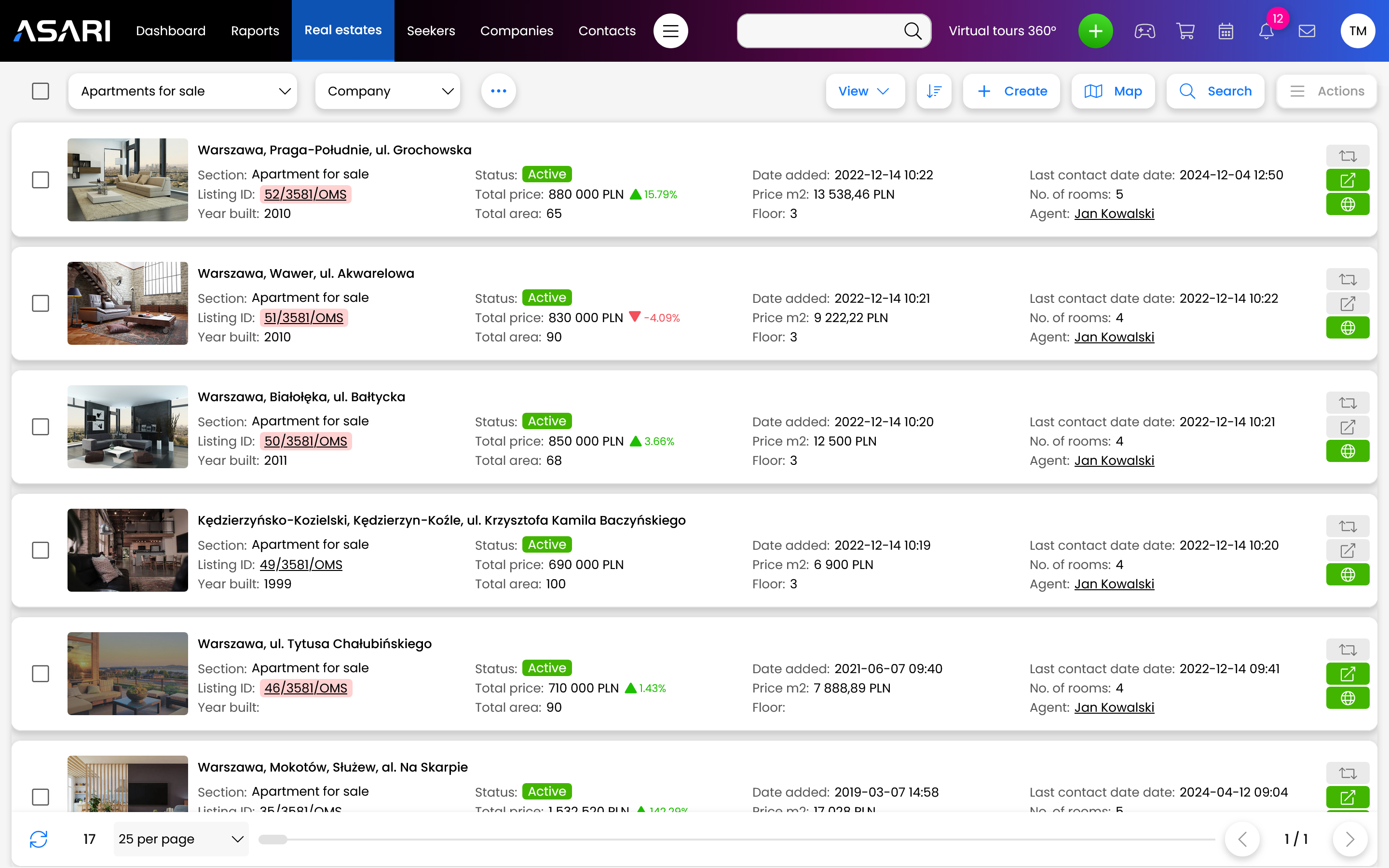
From the list of properties, select the offer you are interested in.
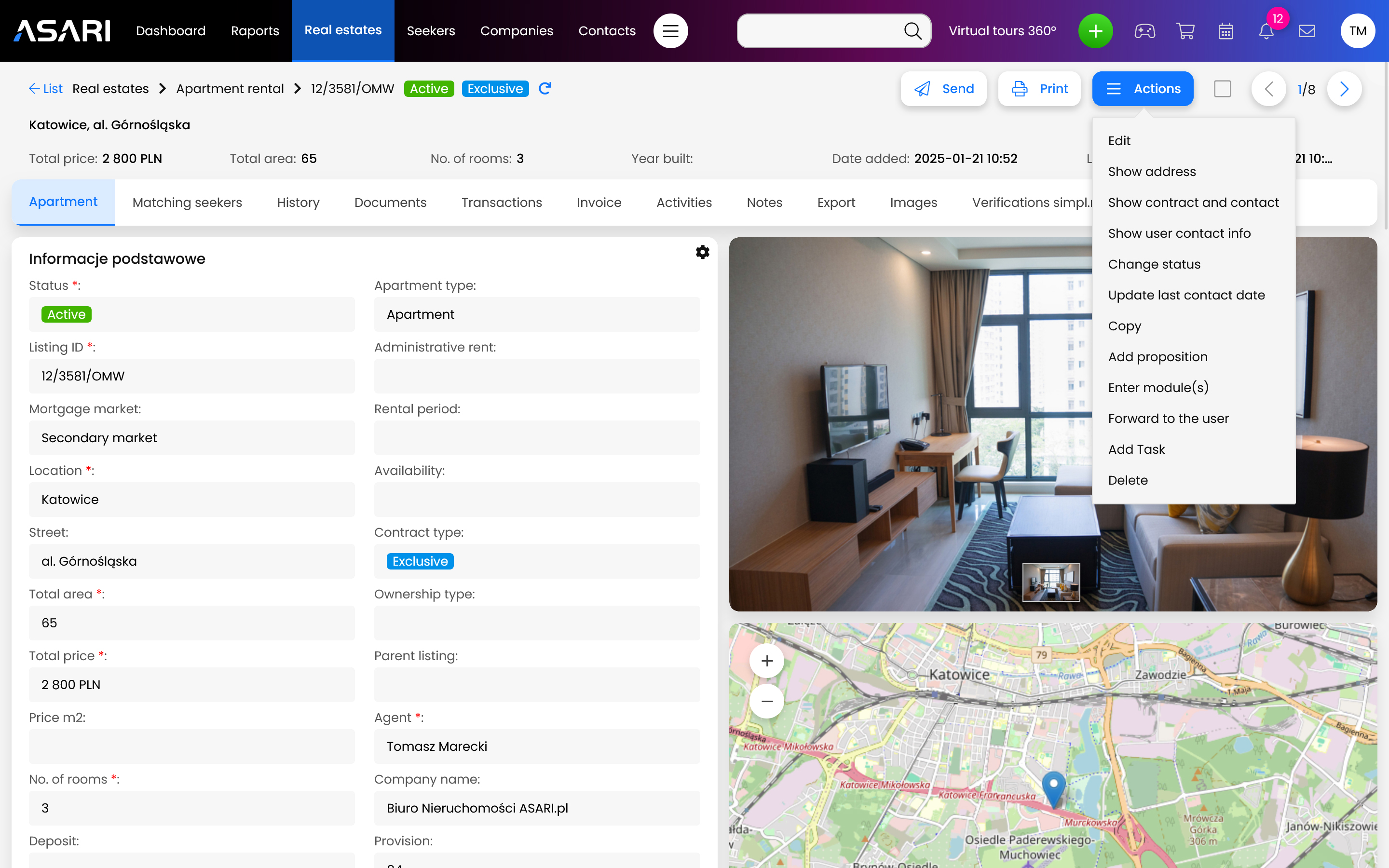
Then click the Actions button and select Edit.
.
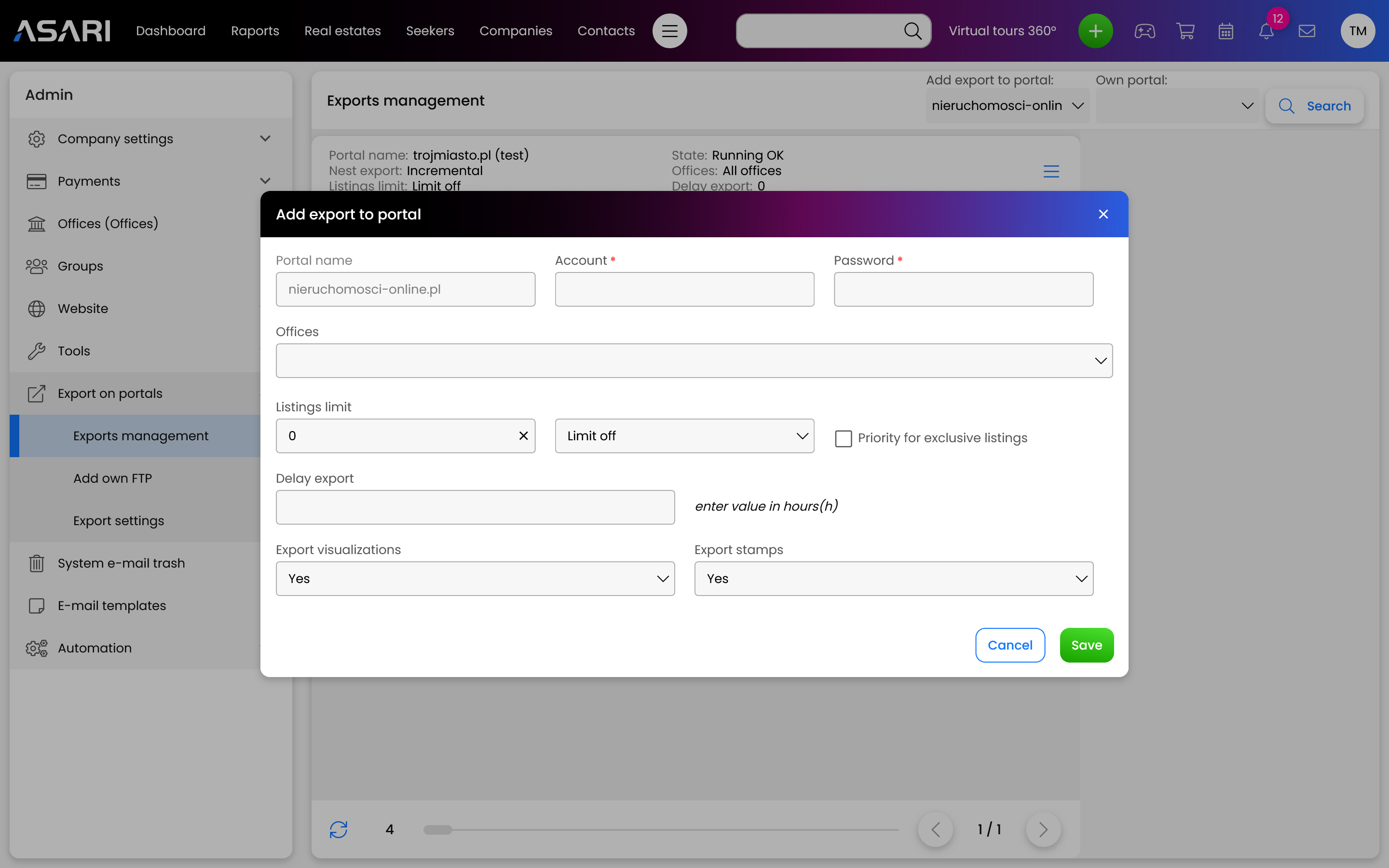
Go to the EXPORT tab and make the appropriate settings. When you select the Export to portals field to YES, a list of portals you work with will appear. These portals are marked YES by default, while you can make individual adjustments to the settings. Pay attention to the Select stamp field.
You can read more about stamps in the instructions: Applying stamps to images in export to portals and website.
.
Option 2 - manage exports through operations on a basket of properties
Important note: this option is available only to users with the appropriate authorization in Groups. If you do not have it, please contact the administrator of your office.
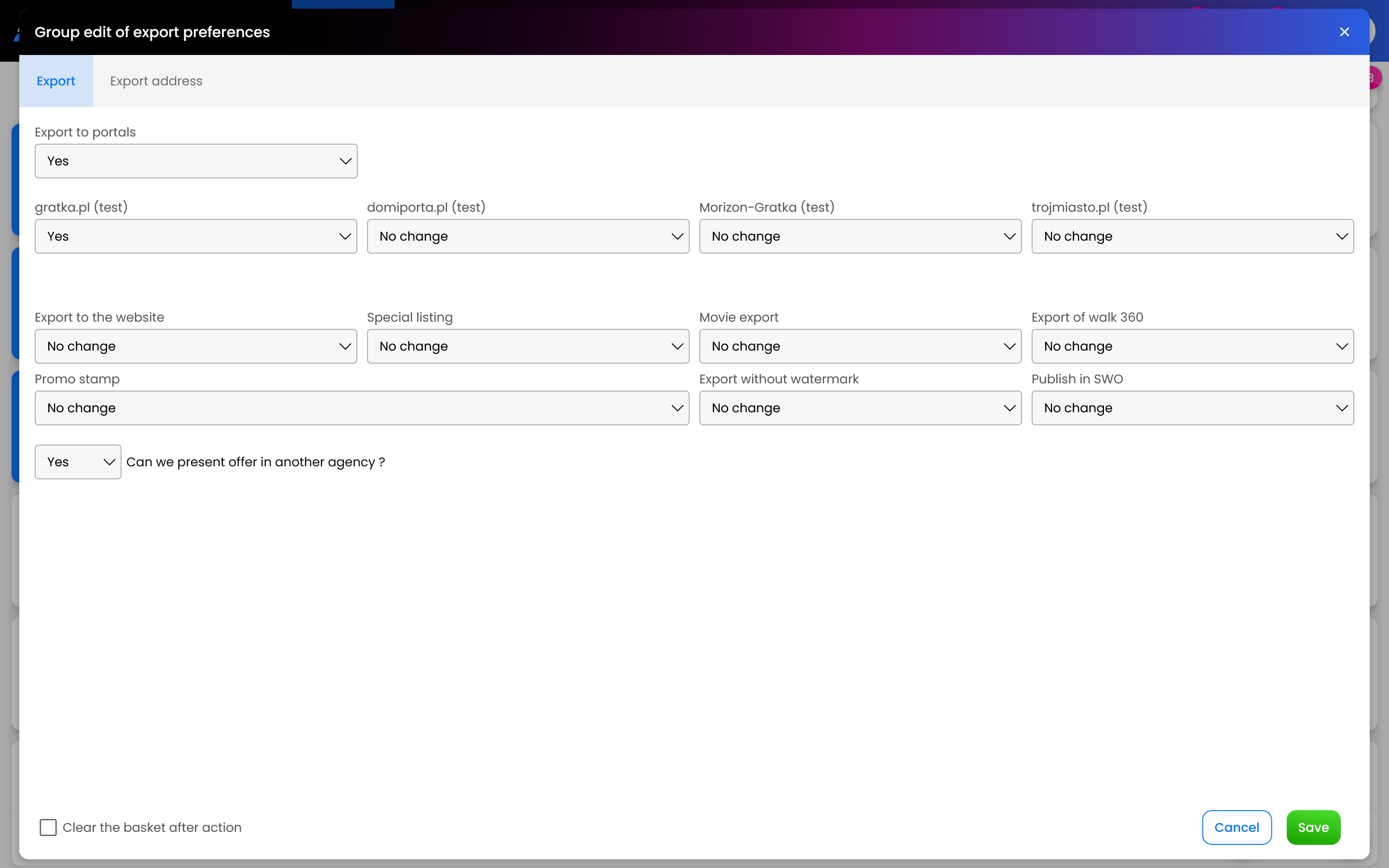
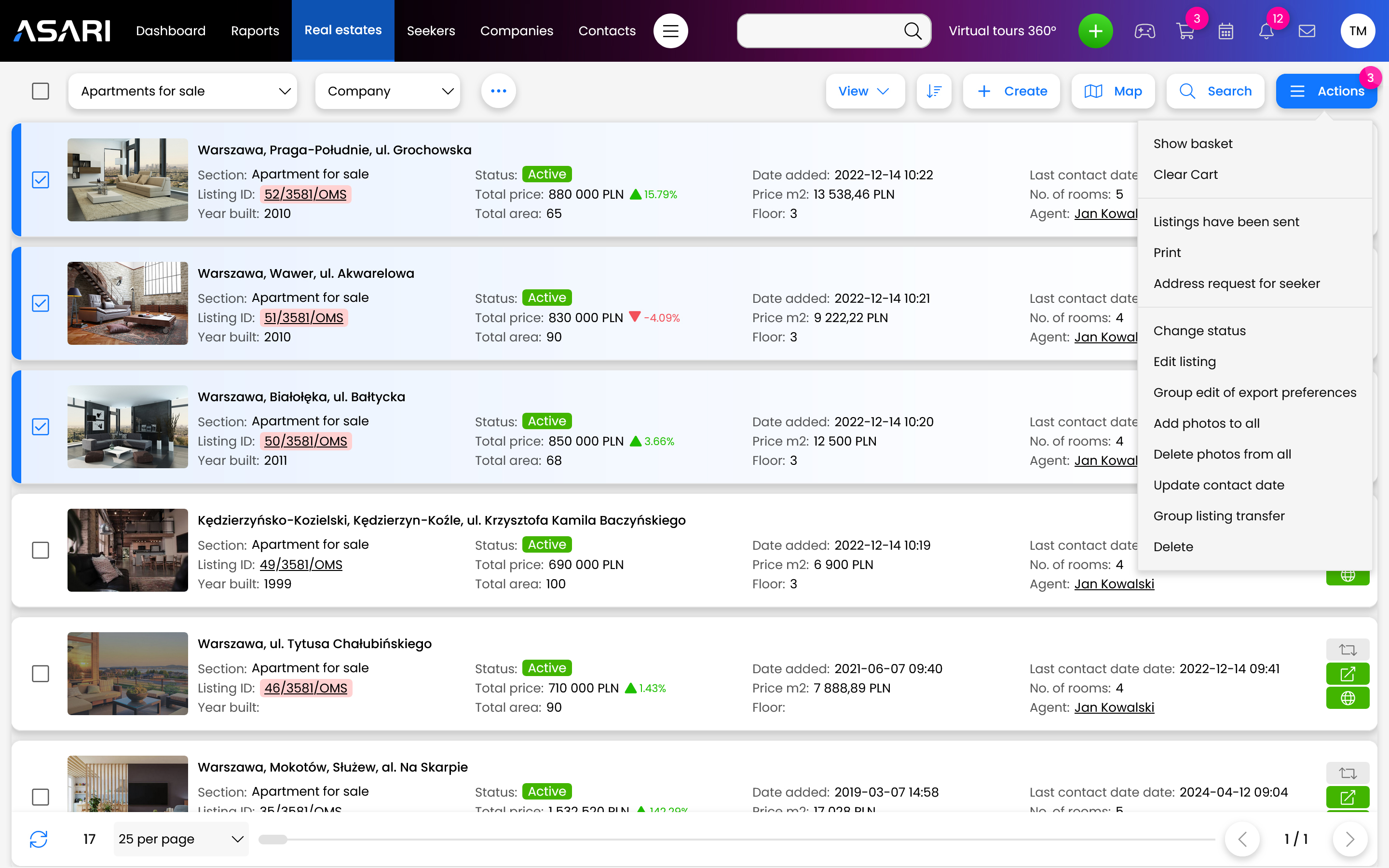
Select the property listings you want to edit in groups, and they will be added to your shopping cart. Then click the ACTIONS button and select Group edit of export preferences.
. 
In the new window, set the appropriate configuration. After clicking the SAVE button, the program will perform the appropriate configuration and export to the Internet.
.